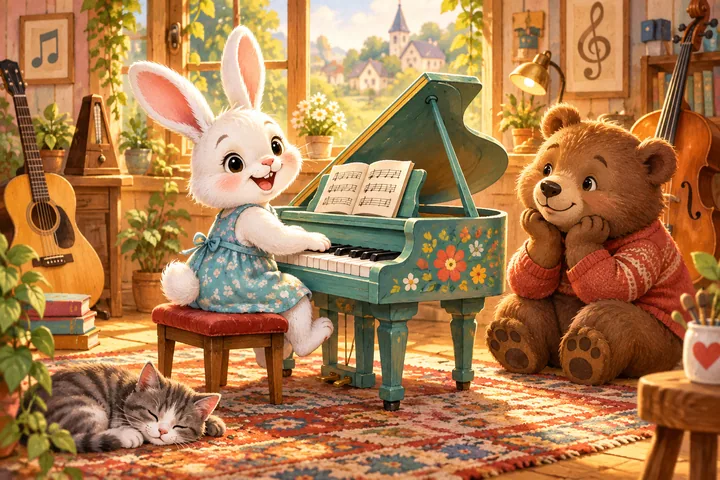
おとと リズム
「ひとつ鳴らして、相手が返す」から始める音遊びです。もりの リズムたいは3つの楽器の順番や長さ、どうぶつ おんがくひろばは鍵盤の高さやメロディーを試せます。似ている録音ボタンも、残せる音数と消す範囲が違います。最初の遊び方から、曲を残すところまで分けて紹介します。
最初に、聞こえるかを短く確認する
端末の音量を小さめにして、遊ぶゲームの「おとを ためす」を押します。リズムたいではくまのたいこ、うさぎのタンバリン、きつねの木琴を順に鳴らします。音楽ひろばではド・ミ・ソが鳴ります。ページを開いただけでは演奏を始めないので、保護者がこの操作を担当し、子どもには「どの子の音が聞こえた?」と聞いてみましょう。
聞こえなければ、ゲーム内の音量、ブラウザのタブのミュート、端末の音量と出力先を確認します。リズムたいは「音の ほうほう」を「音声ファイル」に変え、もう一度「おとを ためす」。音楽ひろばは「きこえないとき」から「音声ファイルで ためす」を選びます。音声ファイルでは音量メーターが動かないため、メーターだけで聞こえていないと判断しないでください。
音が使えない日は、リズムたいの動物の光と順番の絵でまねっこできます。音楽ひろばには「おとなしで ひかりあそび」もあります。聞く遊びを続けるより、見て返す遊びへ切り替えましょう。音のサポートにも確認手順があります。
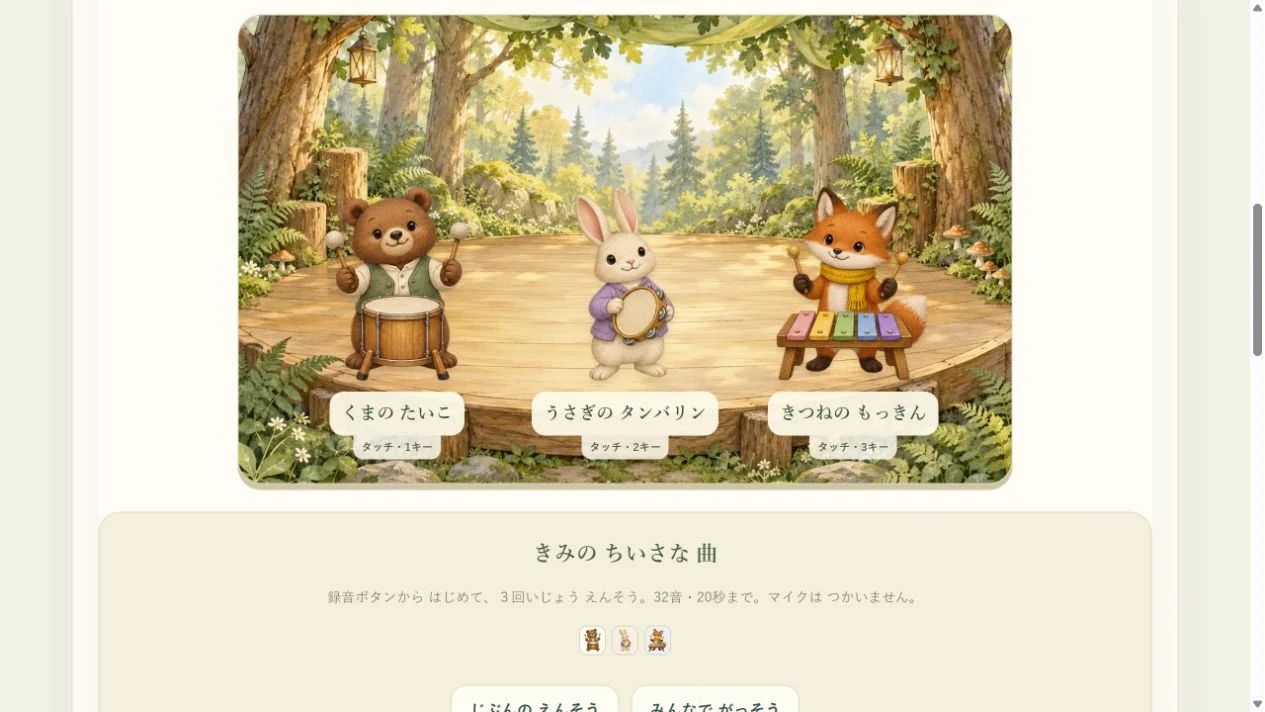
リズムたい:2つのお手本を、自分の速さで返す
「まねっこ」「2つの おと」「ゆっくり」を選びます。ここでは音の高さを当てるのではなく、誰が鳴らしたかを同じ順番で返します。
- 「お手本を はじめる」を押し、動物の動きと音を見聞きします。お手本の間は、子どもは押さずに待ちます。
- 「きみの ばん!」になったら、たとえばくま、うさぎのお手本なら、くまを押してからうさぎを押します。実際の順番は曲ごとに違います。
- 合っていたら順番のカードに印がつき、「できた」の数が増えます。急いで続ける必要はありません。
- 最後まで返したら「つぎの きょくへ」。同じ2音の別の曲を試してから、4音へ進めます。
長い音・短い音・休みは、押す操作を分ける
「ながい・みじかい」では、動物の代わりに「ポン!/ながおし」を使います。短い音は押してすぐ離し、長い音は押したまま約半秒以上待って離します。押している間の表示も手がかりにできます。休みの番は「おやすみ ☁」を押します。何も押さずに待つだけでは、休みを答えたことにはなりません。
「ポン、ながく、おやすみ」とお手本を一緒に言ってから、子どもが操作しても構いません。違う長さを答えてもその番をやり直せます。長さを変えることと、お手本の速さを上げることは別の挑戦です。最初は「ゆっくり」を保ったまま遊びましょう。
自由演奏:3回鳴らして、自分の曲を残す
「じゆうに えんそう」に切り替え、「録音を はじめる」を押してから動物をタッチします。ひとつ鳴らして離し、次の動物へ。1・2・3キーでも選べます。同じ楽器を3回使ってもよく、3種類すべてを入れる必要はありません。
- 少なくとも3回演奏し、できたら「録音を おわる」を押します。上限は32音または20秒で、上限に達すると録音を終えます。
- 「じぶんの えんそう」で、自分が選んだ楽器とタイミングを聴き直します。「くまのあとに、少し待ってうさぎだったね」と、ひとつの場所を確かめます。
- 「みんなで がっそう」では、記録した各タイミングに3つの楽器が一緒に鳴ります。元の曲を別の曲に上書きする操作ではありません。
- 途中で終えたければ「えんそうを とめる」。再生が止まり、保存した曲は残ります。
残せる自分の曲は1つです。3音以上の新しい録音を終えると置き換わります。3音未満で終えた録音は保存されず、前の曲は残ります。録音途中に遊び直す、遊ぶモードを変える、別のタブへ移るなどで中断した場合も、未完成の録音を残す操作にはなりません。残したいときは、先に「録音を おわる」で終えてください。
ここでの「録音」は楽器の番号、押したタイミング、音の長さをこのブラウザに残すものです。マイクで子どもの声や部屋の音を録る機能ではありません。
コンサートの記録で、舞台と飾りを選ぶ
「コンサートの アルバム」には、まねっこと長さの遊びが、それぞれ2・4・6音で6曲ずつ、合計36曲あります。同じ曲のスタンプは1枚。自由演奏ではスタンプが増えません。
最初の1枚で葉っぱの飾り、6枚でお花の舞台、18枚で星空の舞台が使えるようになります。次のごほうびまでの枚数を見て、まだ遊んでいない曲を選べます。開いた舞台や飾りはアルバムで選び、飾りはもう一度押すとしまえます。全部集めることを今日の目標にせず、まず1曲と1つの飾りでもひと区切りです。
音楽ひろば:鍵盤とたいこを分担する
音の高さを変えてみたい日は「どうぶつ おんがくひろば」の「じゆうに・ふたりで」へ。うさぎの木琴とことりのピアノにはドから高いドまで8つの鍵盤があり、くまのたいこは「どん」と「しゃっ」の2つです。リズムたいのうさぎはタンバリンなので、2つのゲームで担当する楽器は異なります。
子どもが鍵盤を1回、おとながたいこを1回、と返し合えます。パソコンではA・S・D・F・G・H・J・Kがメロディー、スペース・Lがたいこです。「みて まねっこ」は鍵盤の手がかりを見て、「きいて まねっこ」は先に「おてほんを きく」を押してから返します。違う音を押しても、その音の番をもう一度試せます。
こちらの「きょくを きろく」は最大64音、録音時間は最大2分です。「きろくを おわる」で終え、「きろくを きく」で再生、「とめる」で再生を止めます。新しい録音は前の曲を置き換えるため、残している曲を聴きたい場合は、録音を始める前に聴いてください。
遊び直す・曲を消す・スタンプを消すを区別する
- リズムたいの「この あそびを やりなおす」は今の演奏をやり直します。保存した曲とスタンプは残ります。
- リズムたいの「録音を けす」は確認後に自分の曲だけを削除します。「スタンプを リセット」はスタンプを削除し、舞台と飾りは集め直して開きます。曲は残ります。
- 音楽ひろばの「えんそうを やりなおす」は遊びをやり直し、保存済みの曲とメロディーの記録は残します。
- 音楽ひろばの「きろくした曲と メロディーの記録を けす」は確認後に両方を削除します。曲だけを消す操作ではありません。
記録は同じブラウザで使うものです。ブラウザのデータを消すと失われ、別の端末へ自動で移るものではありません。「保存できません」の表示があるときは、新しい記録が次回も残る前提にせず、その場の演奏を楽しんでください。
画面を離れたら、同じ順番を手拍子で
おとなが2回たたき、子どもが返す。次は「たたく、休む、たたく」を手の動きで示します。「今度はあなたが先生ね」と出す役を交代しても遊べます。長い音は手を広げて保ち、短い音は一瞬だけ手を合わせるなど、動きで表しても構いません。相手の返事を待ち、同じ短い並びからひとつだけ変えてみましょう。
ここで紹介するのは親子の遊び方です。特定の年齢での達成や学習効果を保証するものではありません。読み方・操作は保護者が手伝い、いつでも遊びを切り上げて構いません。
Music & Rhythm
Start with one sound and let someone answer. Forest Rhythm Band explores the order and length of three instruments; Animal Music Garden adds pitched keys and melodies. Their recording controls have different limits and reset scopes. Here are concrete ways to begin, hear the feedback and keep a small performance.
Check the sound before starting a challenge
Begin with a low device volume and press the game’s sound-test button. “Test sound” in Forest Rhythm Band plays Bear’s drum, Bunny’s tambourine and Fox’s xylophone in turn. “Try the sound” in Animal Music Garden plays C, E and G. Opening a page does not start a performance. A grown-up can handle the test and ask, “Which friend could you hear?”
If nothing is audible, check the game’s volume, the browser tab’s mute setting and the device’s volume and output. In the rhythm band, change “Sound method” to “Sound files”, then press “Test sound” again. In the music garden, open “Cannot hear it?” and choose “Try audio files”. The level meter does not move with the sound-file method, so a still meter alone does not establish that the speakers are silent.
On a quiet day, use the rhythm band’s glowing animals and picture sequence. The music garden also offers “Play with lights only”. Switch to watching and answering rather than continuing a listening task without sound. Our sound help gives further checks.
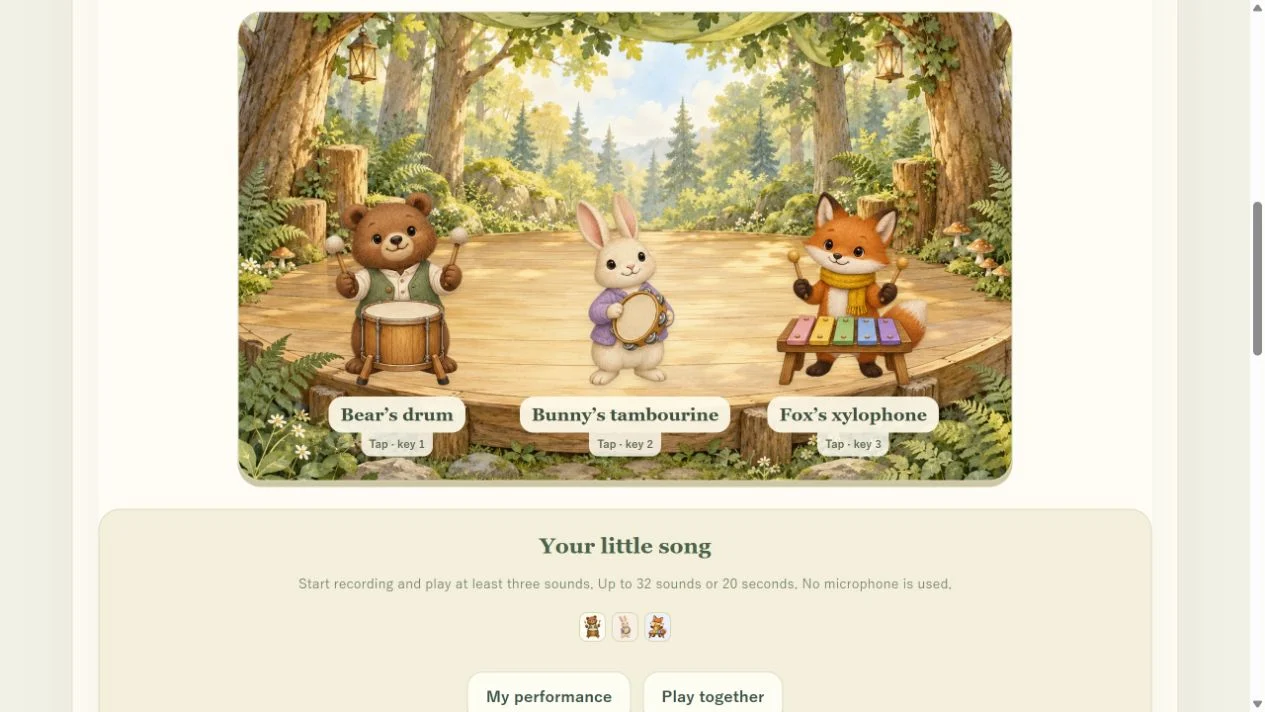
Copy two sounds at your own pace
Choose “Copy the band”, “2 sounds” and “Slow tempo”. This activity asks who played, in which order, rather than asking for a pitch name.
- Press “Start the example”. Watch the animals and listen without pressing during the example.
- Wait for “Your turn!” If the example was Bear then Bunny, press Bear and then Bunny. The order changes between songs.
- A correct answer marks its picture card and increases “Matched”. There is no deadline for the next answer.
- When the sequence is complete, choose “Next song”. Try another two-sound song before moving to four sounds.
Separate a tap, a hold and a rest
In “Long, short & rest”, use “Tap / hold” rather than the animal buttons. Press and release quickly for a short sound; keep pressing for about half a second or longer before releasing for a long sound. The display changes as you hold. Use the “Rest ☁” button for a rest: waiting without pressing it does not submit a rest answer.
Say “tap, hold, rest” together before the child tries the controls. An incorrect length lets them retry the same step. Changing sound lengths and increasing the example’s tempo are separate challenges; keep “Slow tempo” while exploring the new controls.
Free play: record three sounds, then hear them together
Choose “Free play”, then “Start recording”, and tap an animal. Release before choosing the next one; keys 1, 2 and 3 also work. Playing the same instrument three times is enough. You do not have to include all three instruments.
- Play at least three sounds and choose “Finish recording”. Recording ends at its limit of 32 sounds or 20 seconds.
- “My performance” replays your chosen instruments and timing. Notice one detail: “You waited a little between Bear and Bunny.”
- “Play together” plays all three instruments at every recorded beat. It does not overwrite the original song with a different recording.
- Use “Stop performance” to end playback early. Your saved song stays.
The game keeps one own song. Finishing a new recording with at least three sounds replaces it. A recording with fewer than three is not saved and keeps the previous song. Restarting, changing activities or leaving the tab during a recording interrupts the unfinished draft; it does not save that draft. Choose “Finish recording” before leaving if you want to keep it.
Recording stores instrument choices, timing and sound duration in this browser. It does not use a microphone to record your child’s voice or room sounds.
Choose a stage and decorations through the scrapbook
The “Concert scrapbook” has 36 challenges: six songs at each of two, four and six sounds, in both copy and length modes. Each challenge earns one stamp, even when replayed. Free play does not add stamps.
One stamp opens the leafy garland; six open the Blossom garden stage and eighteen the Starlight stage. The next-gift display shows how many stamps remain. Choose an unlocked stage or decoration in the scrapbook; tap a decoration again to put it away. One completed song and one decoration can be a complete session without collecting everything.
Music Garden: share keys and drums
For pitched notes, open Animal Music Garden’s “Free play & duet”. Bunny’s xylophone and Bird’s piano have eight keys from C to high C; Bear has “Boom” and “Shake” drum pads. Bunny plays a tambourine in the rhythm band, so the two games assign different instruments.
Let the child play one key and the grown-up answer with one drum tap. On a keyboard, A S D F G H J K play melody notes, and Space and L play drums. “Watch & copy” gives visual note clues. In “Listen & copy”, press “Hear the melody” before answering. A wrong note lets you retry the same step.
This game’s “Record a tune” has a different limit: 64 notes or two minutes. Use “Finish recording”, “Play my tune” and “Stop” to finish, replay and stop playback. A new recording replaces the previous tune, so listen to a tune you want to hear before beginning another.
Restarting is different from deleting records
- In the rhythm band, “Restart this activity” starts the current activity again and keeps your saved song and stamps.
- “Delete recording” removes only the own song after confirmation. “Reset concert stamps” removes stamps; stages and decorations need unlocking again, but the song stays.
- In the music garden, “Restart playing” keeps the saved tune and melody progress.
- “Clear saved tune and melody progress” deletes both after confirmation. It is not a tune-only delete control.
These records belong to this browser. Clearing its data removes them; they do not automatically move to another device. If a save warning appears, do not assume new progress will be present next time. You can still enjoy the performance now.
Answer with claps away from the screen
Clap twice and let your child answer. Then try a clap, a pause and another clap. Say, “Your turn to be the teacher,” and swap who sets the sequence. You can also hold your hands apart for a long sound and bring them together briefly for a short one. Wait for the reply and change just one part of a short sequence.
These are suggestions for shared play, not promises about learning outcomes. A grown-up can handle reading or controls, and you can stop whenever you wish.