たんけんする
新しい生き物を見つけるだけでなく、いちど出会ったなかまをじっくり見る。むしとりと水族館には、図鑑・観察・お世話を行き来する遊びがあります。「何匹集めた?」の次に試せる、親子の小さな見方を紹介します。
むしとりでは、捕まえる前のひと呼吸
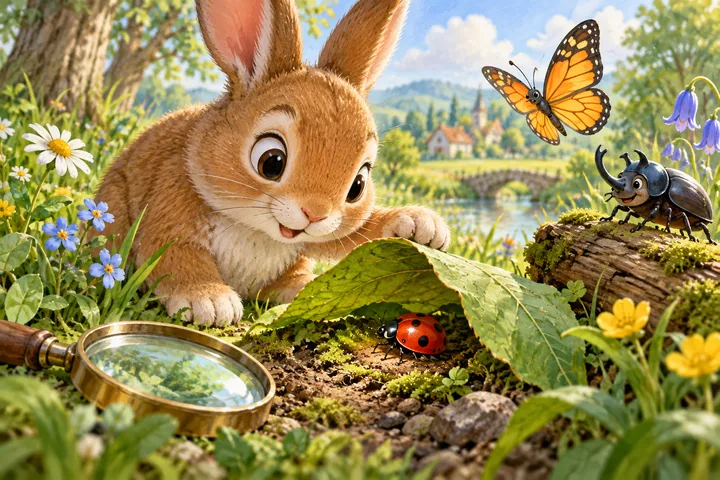
むしとり さんぽで「じゆうに さがす」を選び、葉っぱや草の隠れ場所をタッチしてみましょう。虫が現れたら、すぐ捕まえる前に、色・羽・体の形を見ます。動きを追いづらいときは、動きを止める操作を使えます。虫をタッチするか、網を虫の上まで運んで離すと捕まえられます。
観察ページでは、見る場所をひとつ決める
捕まえた虫を大きく見られる場面では、まず羽、次は体の模様、というようにひとつずつ見ます。「全部見よう」よりも、同じ場所をゆっくり比べるほうが会話を始めやすくなります。特徴のボタンを押すと、その観察が自動でメモに残ります。保存ボタンを探す必要はありません。観察が終わったら「そっと はなす」で次の出会いへ進めます。
図鑑を開いたときは、新しいなかまと前に見たなかまをひとつずつ選ぶつもりで眺めてください。「丸いところがある」「こちらは羽が細い」など、見える形を言葉にします。まだ見つけていない枠は、次に探す楽しみにしておけます。
- 「はなばたけ」→「じゆうに さがす」で、葉・草・木の隠れ場所をひとつずつタッチします。赤い羽に黒い点のある虫がてんとうむしです。位置は散歩ごとに変わるので、同じ場所だけ探さず別の隠れ場所も見ます。
- 現れた虫をタッチして捕まえます。網を使うなら、虫の上まで運んで離します。追いにくければ「うごきを とめる」で動きを止め、同じ虫をもう一度ねらえます。
- 観察画面で「てんてん」を押すと、模様が大きく見え、その横にチェックがつきます。「黒い点をひとつ指してみよう」と絵を見ます。次は「あし」を押し、小さな足の場所を探します。
- 初めて見る2つの特徴なら、観察メモが2つ増えます。同じ特徴を何度見ても重複して増えません。「そっと はなす」のあとも、「ずかん」から見つけたてんとうむしを選び、特徴を見直せます。
図鑑は12種類、観察メモは各2つで24個です。全部集める代わりに、今日はひとつの虫の2つの特徴まで、と終わりを決めても構いません。保存できなかった表示が出たときは、そのメモが次回も残るとは限りません。
釣りでは、魚とエサの位置を見る
つりと すいぞくかんでは、魚の近くをタッチしてエサを下ろし、食いついた合図が出てから釣り上げます。魚から遠い場所では捕まえられないので、「魚が今いるのはどこ?」「もう少し近づける?」と画面の位置を一緒に確かめましょう。釣れる速さを競う必要はありません。
水族館へ迎えたあとは、食べ物を落とす、おそうじする、飾りを置く、という違う操作を試せます。一度に全部行わず、今回はごはん、次回はガラスのおそうじ、とひとつ決めても楽しめます。
お世話の前と後を見比べる
- お世話をする前に、水族館の生き物やメーターを見て「今はどんなようす?」を話します。
- ごはんをあげるなど、ひとつだけ操作します。
- 動きや表示がどう変わったか確認します。すぐ同じ操作ができない場合は、別のお世話を試すか、しばらく眺めてみます。
- 写真を残せる場面では、好きな配置を記録します。飾りを動かしてから、前の写真と見比べる遊びにもできます。
「何が変わった?」に答えづらそうなら、「さっきはここにいたね」とおとなが一か所だけ示します。変化が見えなかったときも、無理に感想を求めず次の操作へ進めて構いません。
ごはんのあと、8秒は別の遊びを
水族館でなかまを選び、「ごはん」を押して水槽の場所をタッチすると、そこまで泳いで食べます。「ごはんを あげる」からも始められます。同じなかまが食べ終わったら、次のごはんまで8秒待ちます。「おなかいっぱい」の数字が出ている間は「あわあそび」の3つの泡をタッチするか、「なかまを よぶ」で動きを見ても構いません。
おそうじは、見える5つのよごれから
「おそうじ」を選び、ガラスのよごれを5つタッチするかこすります。残りの数を見て、ひとつずつ消えていくのを確認。5つ磨くと水のきれいさが100%になります。すでに100%ならよごれは出ないので、何も押せなくても故障とは限りません。ごはんをあげると水のきれいさが下がり、次のおそうじを試せます。
写真は12枚まで、このブラウザのアルバムへ
「しゃしんを とる」は水槽のなかま・飾り・背景・明かり・その時の姿を記録する操作です。端末のカメラは使いません。最大12枚で、食事中やひとやすみ中は撮れません。いっぱいになったらアルバムで1枚を開き、「この しゃしんを けす」で空きを作れます。写真を消しても、魚や成長、買った飾りは消えません。過去の写真の魚は、その後のお世話に合わせて動いたり大きくなったりはしません。
画面で確かめる:観察のチェックと、写真の枚数
手順1:全体の絵と拡大した場所を見比べる
いちど見つけたてんとうむしを、「ずかん」→「てんとうむし」→「てんてん」の順に押して開き直した場面です。虫全体の絵から伸びる線と、横の拡大図を見て、同じ黒い点を探します。おとなが拡大図を指し、子どもが虫全体の同じ場所を探す分担でも遊べます。
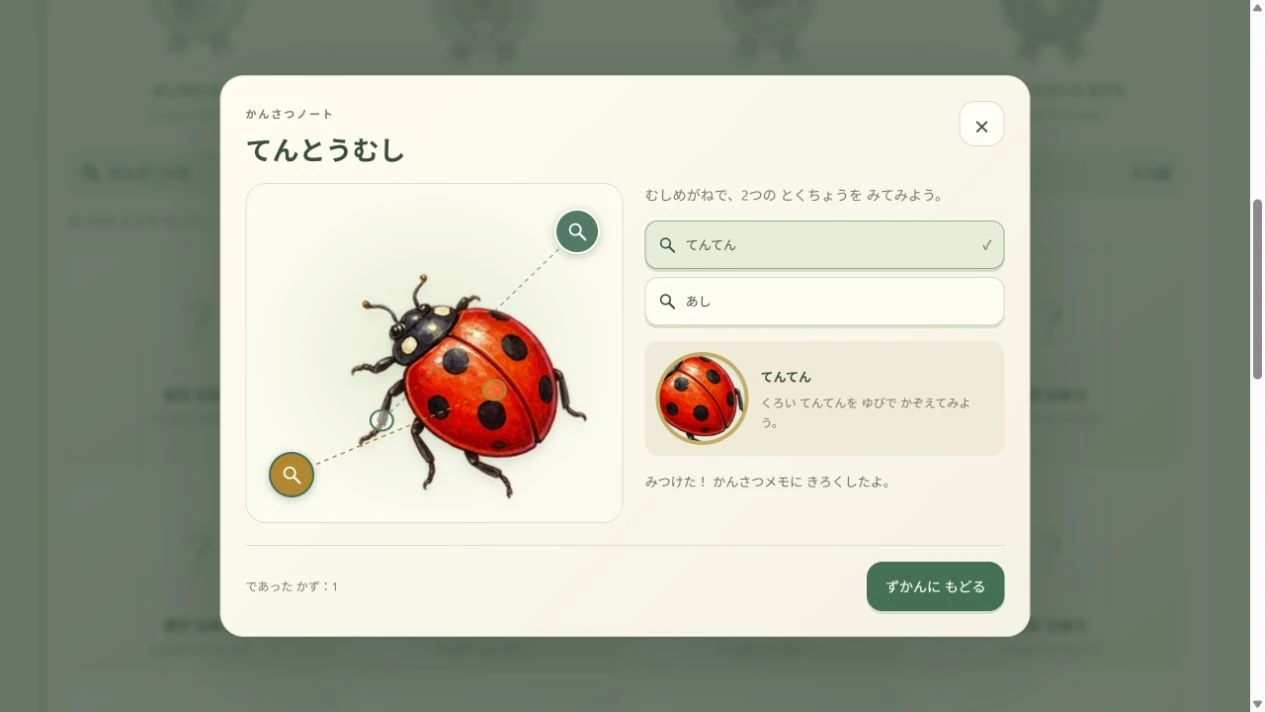
次は、まだチェックのない「あし」を押して、拡大される場所を見比べます。画面が切り替わっても全体の絵は残るので、「さっきの点より上かな、下かな?」と場所の違いを話せます。この画面では「ずかんに もどる」で図鑑へ戻れます。捕まえた直後に観察している場合は、ボタンが「そっと はなす」になり、散歩へ戻ります。
手順2:写真を開いて、撮ったときの水槽を見る
水族館へ迎えたなかまがいるときに「しゃしんを とる」を押し、水槽の下にある「すいぞくかんの アルバム」で写真の小さい絵を押します。画像は1枚目を開いた例です。「1 / 12」は保存した写真の枚数で、水槽の魚の数ではありません。
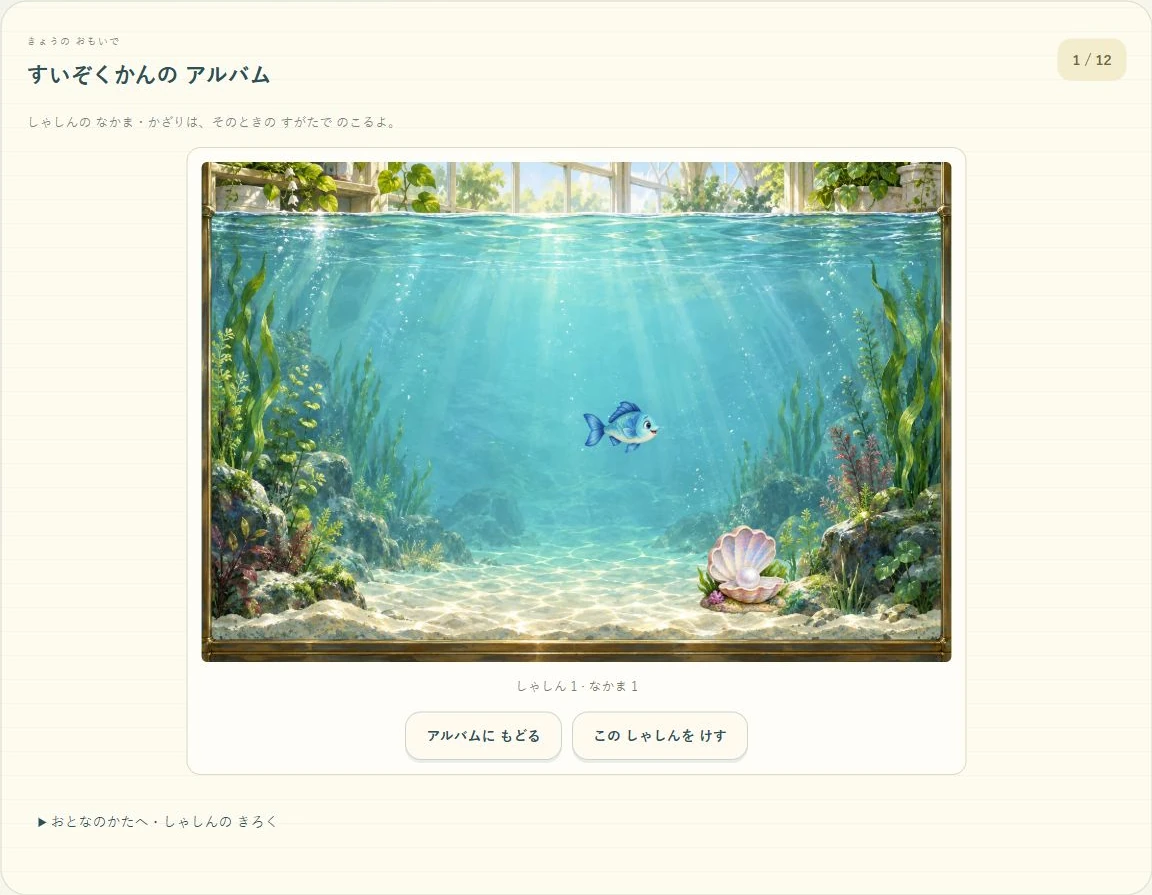
写真の魚や飾りは、その後のお世話で書き換わりません。今の水槽と比べて「ここにいたね」と話せます。空きを作りたいときの「この しゃしんを けす」は、その1枚を消す操作です。確認して消しても、迎えた魚や成長、飾りは残ります。写真を見るだけなら削除の操作は不要です。
図鑑は、ゴールにも途中の目印にも
図鑑を全部埋める日を決める必要はありません。「今日は羽に模様があるなかまをひとつ」「お気に入りをもう一度見る」など、小さな終わり方を選べます。記録はこのブラウザに保存されます。別の端末では同じ図鑑にならず、ブラウザのサイトデータを消すと記録も消えます。
虫取りの「あたらしい さんぽ」は図鑑・観察メモ・バッジを残します。「おとなのかたへ・きろく」内の「ずかんの きろくを リセット」は、その3つを消す操作です。水族館の「つりを やりなおす」は魚やお世話を残して釣りへ戻り、「しゃしんだけ リセット」は写真だけを消します。図鑑内の「すいぞくかんの きろくを けす」は魚・成長・飾り・しんじゅ・写真を全部消すので、確認文を読んで選んでください。
画面の外では、絵を描いて比べよう
気に入ったなかまをひとつ紙に描き、「目立っていた色」「羽の形」など自分が見た特徴を残してみましょう。上手に描く必要はありません。おとなも同じ絵を描くと、気づいた場所の違いを話せます。
ゲームの生き物や生息場所は、遊びのためのイラスト表現です。実物の種類の判定、飼育方法、食べ物、生息地域を教える資料ではありません。実際の虫や魚について知りたいときは、実物に対応した図鑑などで確認してください。
ここで紹介するのは親子の遊び方です。特定の年齢での達成や学習効果を保証するものではありません。読み方・操作は保護者が手伝い、いつでも遊びを切り上げて構いません。
Explore
A new creature is fun to find. A familiar one can be fun to look at again. Our bug and aquarium games let you move between discovering, observing and caring. Here are ways to continue beyond “How many did we collect?”
Pause before catching a bug
Open Little Bug Safari, choose free exploration and tap a hiding place. When a bug appears, look at its colour, wings or body shape before catching it. Pause motion if following it is difficult. Tap the bug, or carry the net over it and release.
Choose one detail on the observation page
When the caught bug is shown larger, choose one place to look: wings first, or a body pattern. A small focus gives you something concrete to compare. Pressing a detail button adds that observation to the notes automatically; there is no separate save button. When you finish, press Gently let it go and continue your walk.
In the collection, look at a new creature and a familiar one. Describe visible differences such as a round shape or narrower wings. Undiscovered spaces can stay as possibilities for a future visit.
- Choose Flower meadow and Explore freely. Tap leaf, grass and log hiding places one by one. Look for red wing covers with black spots. Positions change on each walk, so try different hiding places rather than returning to one fixed spot.
- Tap the revealed ladybird to catch it. With the net, move over the bug and release. If following its movement is awkward, use Pause motion and aim at the same friend again.
- In the observation view, press Spots. The enlarged pattern appears and its button gets a check. Ask “Can you point to one black spot?” Then press Legs and look for its small feet.
- Two previously unseen details add two observation notes. Looking at the same detail again does not add a duplicate. After Gently let it go, select your discovered ladybird from Field guide to revisit the details.
The field guide has 12 species and two notes per species, 24 in total. You can stop after two details of one friend instead of filling everything. If a saving warning appears, that note may not remain on your next visit.
Watch the fish and the bait
In Fishing & Aquarium, choose a spot near a fish, lower the bait and wait for a bite before reeling in. Bait far from the fish will not catch it. Ask “Where is the fish now?” or “Could we put the bait closer?” and look together. You do not need to race.
After welcoming a friend into the aquarium, explore feeding, cleaning and arranging decorations. Try one kind of care at a time: feeding today, cleaning the glass on another visit.
Compare before and after care
- Look at the aquarium and its meters before an action. Ask “How does it look now?”
- Do just one thing, such as dropping food.
- Notice a movement or display that changed. If you cannot repeat the action immediately, try a different kind of care or watch for a while.
- Where taking a photo is available, record a favourite arrangement. Move a decoration and compare it with the earlier photo.
If “What changed?” feels too open, point to one place and say “Our friend was here before”. If nothing stands out, it is fine to move on without asking for a response.
After a meal, try another activity for eight seconds
Select a friend in the aquarium, choose Feed and tap a spot in the tank. Your friend swims there to eat; Feed my friend also starts a meal. Wait eight seconds after that friend finishes before the next meal. While the full-tummy countdown is shown, pop the three Bubble play bubbles or use Say hello and watch your friend come over.
Clean the five marks you can see
Choose Clean, then tap or rub each of five marks on the glass. Watch them disappear and check the remaining count. All five restore water clarity to 100%. Marks do not appear at 100%, so an empty cleaning view does not necessarily mean a fault. Feeding lowers clarity and gives you another cleaning opportunity.
Keep up to twelve photos in this browser’s album
Take a photo records the friends, decorations, background, light and appearance at that moment; it does not use your device camera. You can keep twelve, and cannot take one during a meal or break. When full, open a photo in the album and use Remove this photo to make space. Removing it keeps fish, growth and purchased decorations. Fish in an old photo do not move or grow with later care.
Read observation ticks and photo counts
Step 1: connect a close-up with the whole picture
This example reopens a ladybird you have already found. Choose “Field guide”, press the discovered Ladybird picture, then choose “Spots”. Follow the line from the whole bug to the enlarged detail and find the same black spot in both views. A grown-up can point to the close-up while the child finds its place on the whole illustration.
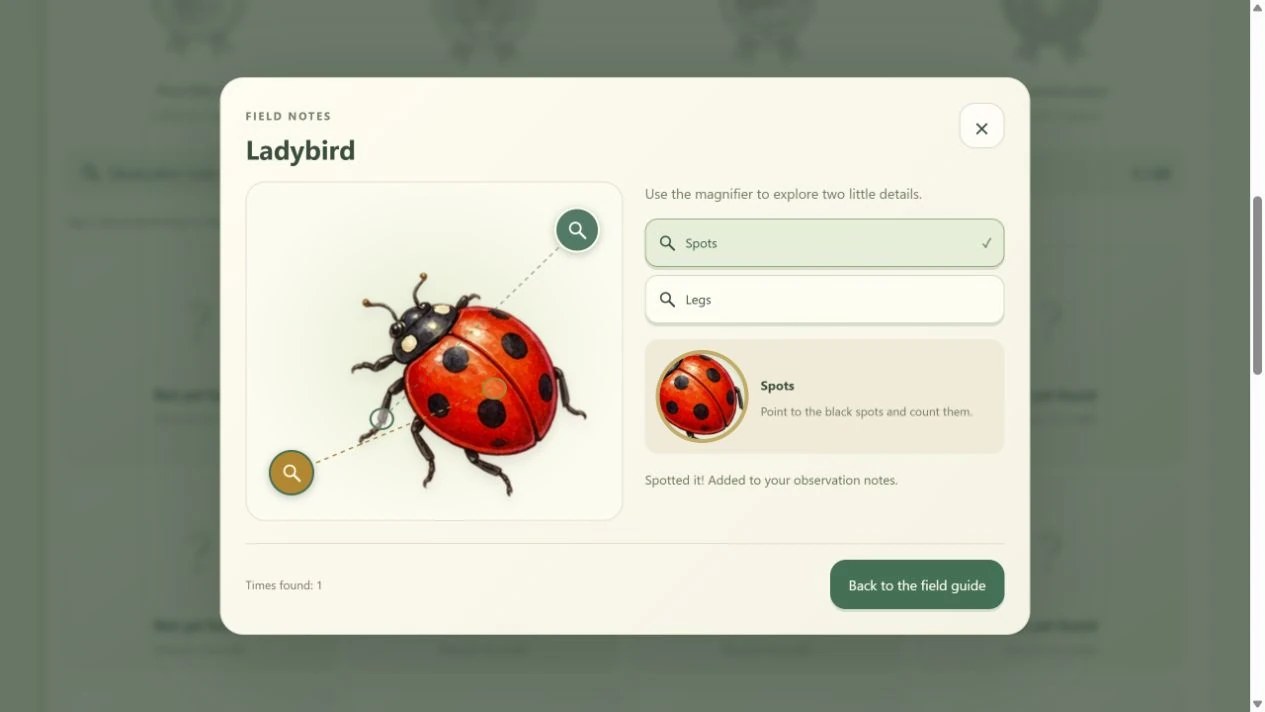
Choose the unticked “Legs” next and compare which area is enlarged. The whole illustration stays visible: “Is this above or below the spot we just saw?” In this view, “Back to the field guide” returns to your collection. Immediately after catching a bug, that button instead reads “Gently let it go” and returns to the walk.
Step 2: open a photo of the aquarium as it was
With a friend in your aquarium, press “Take a photo”, then choose its small picture in “Your aquarium photo album” below the tank. This example opens the first photo. “1 / 12” counts saved photos, not fish living in the aquarium.
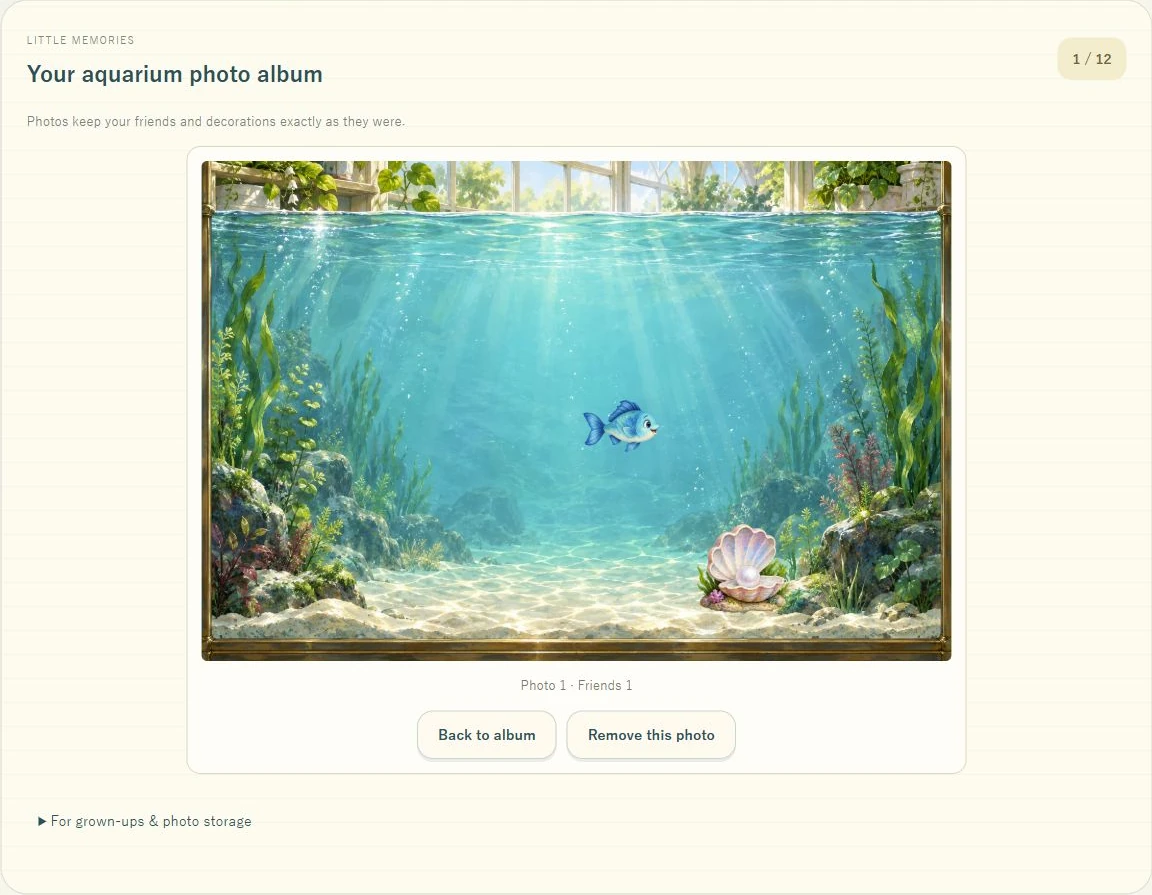
The pictured fish and decorations do not change with later care. Compare them with the current tank: “Our friend was over here.” To make room, “Remove this photo” deletes the selected picture after confirmation; your welcomed fish, growth and decorations stay. There is no need to remove anything just to look at a photo.
A collection can be a stopping point or a guide
You do not need a deadline for filling the book. Try “Find one friend with a pattern on its wings” or “Look at our favourite again”. Progress stays in this browser, does not sync to other devices and disappears if its site data is cleared.
In Bug Safari, A fresh walk keeps discoveries, observation notes and badges. Reset the field guide, under For grown-ups & saved progress, clears all three. In the aquarium, Restart fishing keeps fish and care progress while returning to fishing. Reset photos only clears just the pictures. Clear aquarium progress in the collection removes fish, growth, decorations, pearls and photos, so check the confirmation before choosing.
Draw a detail away from the screen
Draw one favourite creature on paper and include a colour or shape you noticed. The drawing does not need to be accurate or polished. A grown-up can draw the same illustration and compare which details each person chose.
Creatures and habitats here are illustrated for play. These games are not references for identifying real species, animal care, diets or geographical ranges. Use a reference about the actual creature when exploring real-world questions.
These are suggestions for shared play, not promises about learning outcomes. A grown-up can handle reading or controls, and you can stop whenever you wish.